 EraseAILabel
Remove AI label data from Photoshop and Lightroom exports.
Find out whether your export declares AI use, then decide what to do about it.
Your files are processed on your device and never uploaded.
Drop your images here, or choose files
JPG, PNG, WebP, HEIC, AVIF · Max 20MB each · Up to 30 images
Files never leave your device. No account. No uploads.
Read-only inspection. Switch to Image cleaner to remove metadata and export a copy.
Content Credentials were detected. Cleaning removes these records of image origin and edits. Keep an original copy, and disclose AI-generated content where required.
Share the picture, not your location or camera details.
Prepare cleaner files for social posts, product listings, and everyday sharing.
Metadata cleanup doesn't remove visible or pixel-based watermarks, or guarantee that a platform won't apply an AI label. Read the limits
Why a small edit can lead to a label
Generative Fill, Generative Expand, and Generative Remove create new pixels, and Adobe can record that in Content Credentials. Platforms read the record, not the size of the edit, so removing one speck can affect how a whole photo is treated. See which edits can trigger a label.
Try fixing it in Adobe first
- Use a non-generative tool. Clone Stamp, Healing, and Lightroom's Heal mode can fix dust and small distractions. In Remove tools, check whether generative AI is switched on in the options.
- Review your export settings. Adobe describes an Apply Content Credentials option in Lightroom's export dialog.
- Scan the export. Some users report that AI metadata remained after they turned that option off, so check the actual file.
Going back to a version from before the generative edit is the cleanest fix, because the photo then has no AI record to declare.
Cleaning a copy
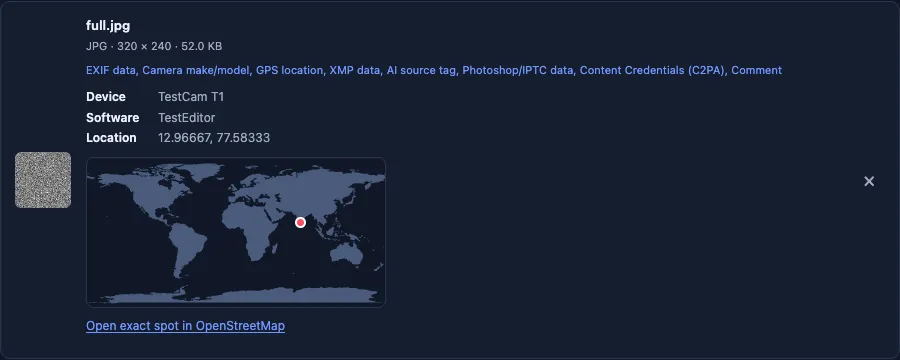
The checker above shows whether your export holds Content Credentials, XMP, or IPTC data. It also lists any IPTC AI source tag that it finds. The cleaner then creates a copy without those blocks.
Be honest about the edit. If a generative tool changed the picture, the label may be accurate, and a line in your caption is often the better answer. Contests, stock libraries, and clients can have their own rules, so check before you submit. Keep your raw file as evidence that your photo is genuine.
See what your export declares
Lightroom: Generative Remove and AI Denoise
Generative Remove creates new pixels, so a record of AI use is expected. AI Denoise is different. Some websites say it can add an AI record too, but we haven't been able to confirm that. The reliable answer for your setup is to export one photo after using it, and scan that file.
A safe export workflow for photographers
- Keep your RAW files, which are your proof of what you shot.
- Export a JPG, and scan it before posting.
- If it holds Content Credentials or an AI source tag, find the step that added them.
- If no generative edit was used, clean a copy.
- If one was, keep the record and mention the edit in your caption.
Keep your camera settings
Photographers often want to share their camera and lens settings. Tick Keep camera details above and export as JPG to keep the make, model, lens, date taken, and exposure settings. Location, editing history, AI records, and stored thumbnails are still removed. For the rules on AI labels across platforms, see how AI label removal works.
Sources
A few things to know
Questions, answered.
Does Clone Stamp or Healing add an AI record?
Users generally report that they do not, because they are not generative. Scanning your export is the most reliable check.
Why is there still AI metadata after I disabled Content Credentials?
Some Adobe users have reported this after using generative tools. Going back before the generative edit is the most dependable fix.
Will cleaning affect my image quality?
PNG keeps decoded pixels without lossy compression. JPG and WebP are re-encoded at high quality, and colors may shift when a wide-gamut image is converted to sRGB.
Does it remove my copyright details too?
Yes. Cleaning removes EXIF and IPTC fields, including copyright and credit lines, so keep your original and add them back if you need them.
Does Lightroom AI Denoise add an AI label?
Some websites say it can, but we have not confirmed it. Scan an export after using it to see whether it holds Content Credentials or an AI source tag.
Can I keep my camera settings when cleaning?
Yes. Tick Keep camera details and export as JPG to keep the make, model, lens, date taken, and exposure settings.